SMS Administration
To send SMS messages from Jethro, you need to:
- Sign up to, enable and configure a SMS provider
- Configure who SMSes appear to come from in the 'sender' settings
- Grant users the SMS - send permission
Configuring a SMS Provider
In Admin → System Configuration:
- ensure the SMS feature is enabled under Enabled Features
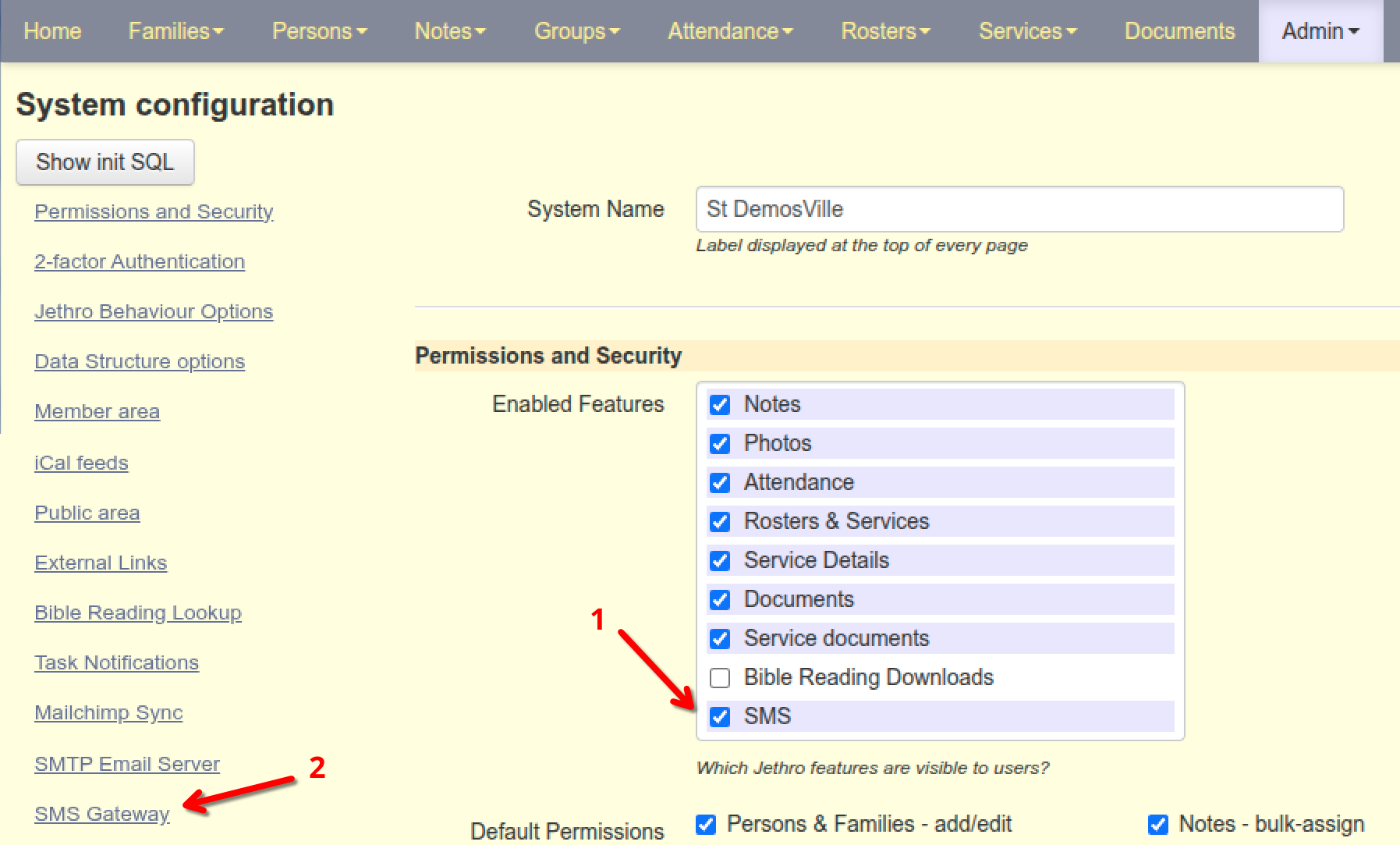
- click SMS Gateway to scroll down to the SMS settings.
In the SMS Gateway section, the first section shows whether your provider is connected. Initially it will report "Not configured", with instructions on how to proceed:
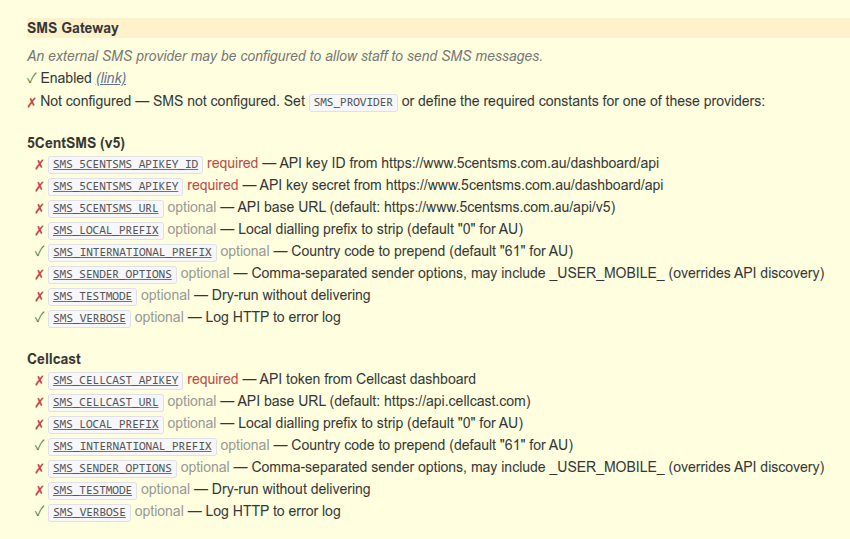
You now need to obtain an API key from your preferred provider, and enter the API key into the relevant setting.
Jethro SMS settings may be set either on the server in conf.php, or Admin → System Configuration. So these are equivalent:
SMS_VERBOSEinconf.php- Sms Verbosein the config page
If both are set conf.php takes precedent.
Jethro sends SMSes via a SMS provider service, which you will need to sign up to (unless using Easy Jethro which is pre-integrated). Jethro supports:
- 5centSMS - https://5centsms.com.au
- Cellcast - https://www.cellcast.com
SMS Provider Capability Matrix
| Capability | 5Cent v5 | 5Cent v4 | Cellcast |
|---|---|---|---|
| Get Balance Query the account balance (remaining SMS credits). | ✅ | ✅ | ✅ |
| Get Sender IDs List registered sender IDs, including ACMA approval status. | ✅ | — | — |
| Deferred Send Schedule a message for future delivery via a sendAt timestamp. | ✅ | — | ✅ |
| Deferred Send Cancel Cancel a previously scheduled message before delivery. | ✅ | — | ✅ |
| Register Sender Number Register a phone number as a sender. Verification may be via OTP or out-of-band link. | ✅ | — | ✅ |
| Register Sender ID Register a sender ID (business identity) with the upstream gateway. | ✅ | — | ✅ |
| Import History Import / sync SMS history. | ✅ partial - senders not imported | — | ✅ |
5CentSMS
-
Generate API keys at 5centsms.com.au/dashboard/api
-
Set these constants in
conf.php:// API key ID from https://www.5centsms.com.au/dashboard/api (required)define('SMS_5CENTSMS_APIKEY_ID', '<insert here>');// API key secret from https://www.5centsms.com.au/dashboard/api (required)define('SMS_5CENTSMS_APIKEY', '<insert here>');or via the System Configuration page:
FiveCent SMS v5 API key IDⓘ️ hideAPI key ID from your 5CentSMS dashboard (required). See <a href="https://www.5centsms.com.au/dashboard/api">5centsms.com.au/dashboard/api</a>.FiveCent SMS v5 API key secretⓘ️ hideAPI key secret from your 5CentSMS dashboard (required). See <a href="https://www.5centsms.com.au/dashboard/api">5centsms.com.au/dashboard/api</a>.
Jethro auto-detects the provider once both constants are set.
Upgrading 5CentSMS from v4 to v5
If you already have SMS_* settings from an older Jethro, SMS will appear configured showing provider '5CentSMS v4' rather than v5:
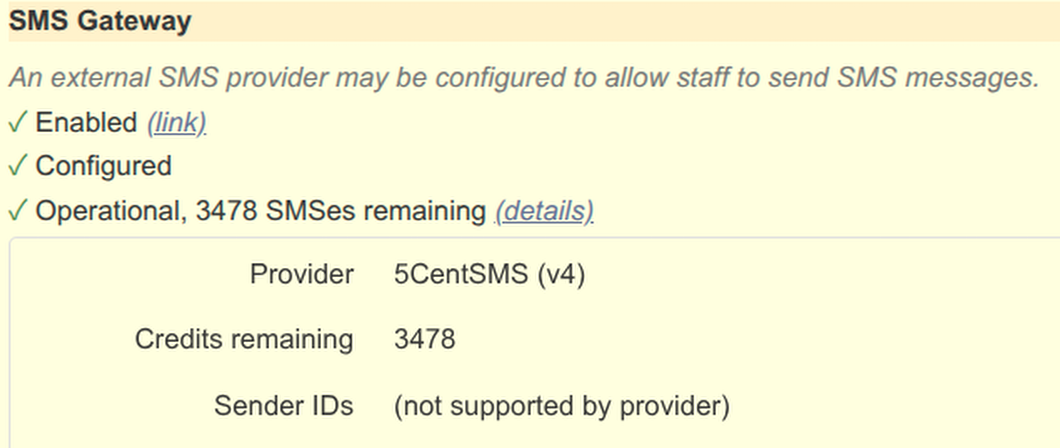
SMS sending will work, but you will be missing out on many features until you upgrade. Follow the steps above to create a new v5 API key and set the new SMS_5CENTSMS_* settings. Once set, Jethro will automatically switch to v5. The old SMS_HTTP_* settings can be removed once migrated.
Cellcast
- Generate a bearer token at app.cellcast.com/accounts/api-keys
- Set 'Sms Cellcast Apikey' in the settings page, or set in
conf.php:
// API bearer token from your Cellcast dashboard (required)
define('SMS_CELLCAST_APIKEY', '<insert here>');
or via the System Configuration page:

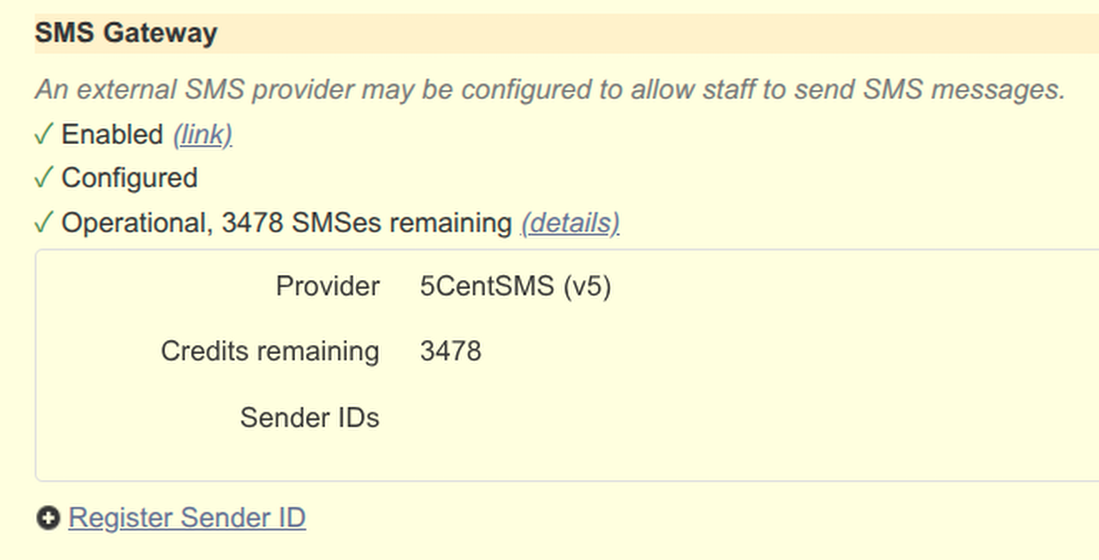
The SMS Gateway section should update:
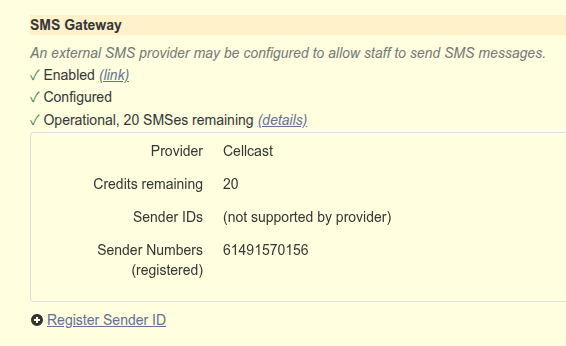
Once configured, a new Persons → Messages page will appear showing SMS Send History.
SMS settings
Beyond just configuring a SMS provider, Admin → System Configuration → SMS Gateway to has various settings affecting Jethro's SMS capabilities.
SMS Sender
When Jethro sends a SMS, it will appear to come 'from' either the mobile number of the Jethro user, or (if configured) 'Sender ID', a short identifier for your church (e.g. StJohnsWPH) that you register. Sender IDs are ideal for bulk messages where you don't expect (and cannot have) a reply. Sending from a personal number is good for pastoral situations where you expect a personal reply, but still want the send recorded.
The SMS_SENDER* defaults to preferring a Sender ID, if present, but also allowing sending from the user's mobile. Some examples:
Message body
(affected features: SMS Message field)
The maximum SMS length can be increased (at a cost), and emojis permitted or forbidden. Click the setting ⓘ️ help icons for details. For how this looks to users, see: .
160.Post-send behaviour
(affected features: SMS Create Note, send cool-off )
0.SMS follow-up.30.Low Balance
0.0.// Balance override. Numeric (e.g. 100) = hardcoded value, useful for testing or as a send cap. 'database' = calculate from sms_purchases table. Unset = query upstream API.
define('SMS_BALANCE', 'Upstream API');
// Block sends when remaining balance < recipient count. Works with all SMS_BALANCE modes.
define('SMS_BALANCE_ENFORCED', 'false');
Debugging & cost display
// Path to a JSONP log file for SMS send audit trail (optional).
define('SMS_SEND_LOGFILE', '');
// Length of a single SMS segment for cost estimation purposes
define('SMS_SEGMENT_LENGTH', 160);
Provider selection
The SMS provider can be explicitly configured here. The 'auto-detect' default causes Jethro to use the first SMS provider properly configured. You could even specify your own implementation class (in conf.php):
5CentSMS v5
Discussed above — fill in these details to use https://5centsms.com.au.
https://www.5centsms.com.au/api/v5.Cellcast
Discussed above — fill in these details to use https://cellcast.com.au.
https://api.cellcast.com.// Bearer token from your Cellcast dashboard (required).
define('SMS_CELLCAST_APIKEY', ''); // Cellcast API bearer token
Registering Sender IDs
A Sender ID is an alphanumeric name that appears as the message sender (e.g. "StBarnabas"). You may wish to register a Sender ID for your church, and use it for bulk SMSes where a reply is not expected.
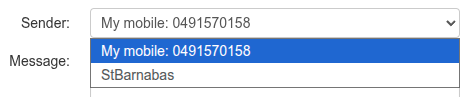
Jethro's SMS form lets one pick the SMS 'sender', and defaults to registered Sender IDs plus the current user's mobile (see SMS Senders):
In Australia, a Sender ID requires registration. A Sender ID must be 3-11 characters, and must relate to your business name. Both 5CentSMS v5 and Cellcast support sender ID registration, and this can be initiated through Jethro.
Go to Admin → System Configuration, and click 'SMS Gateway' go to the SMS configuration.
The first section will show your current SMS provider, and you will see a Register Sender ID link if your provider supports it:
5CentSMS sender ID registration
Click Register Sender ID to open the registration form:
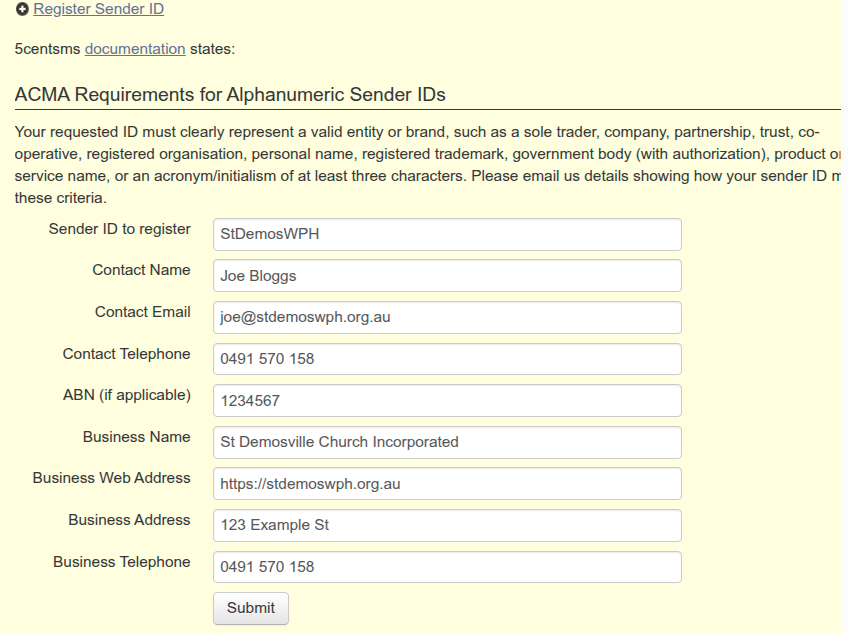
Submitting the form:
-
creates an unverified sender ID with 5CentSMS via their API
-
prints a filled-in form that an authorised representative must copy-and paste into an email, and send to
hello@5centsms.com.au.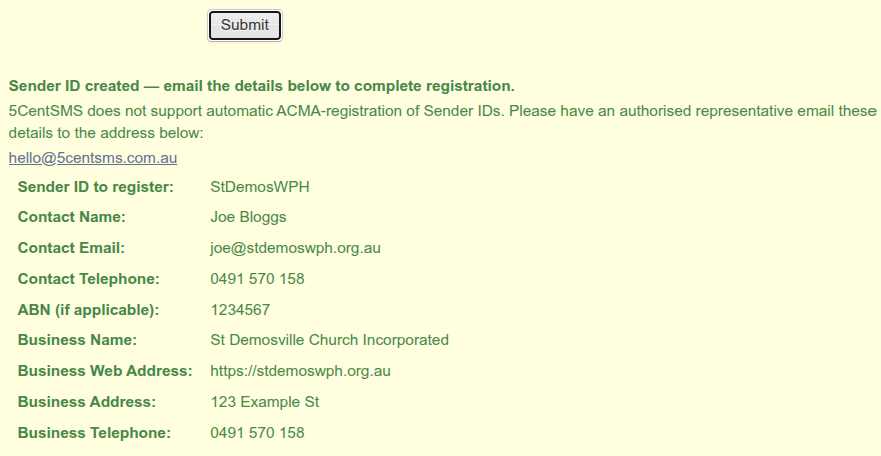
Cellcast sender ID registration
Cellcast allow the full registration form to be submitted via Jethro:
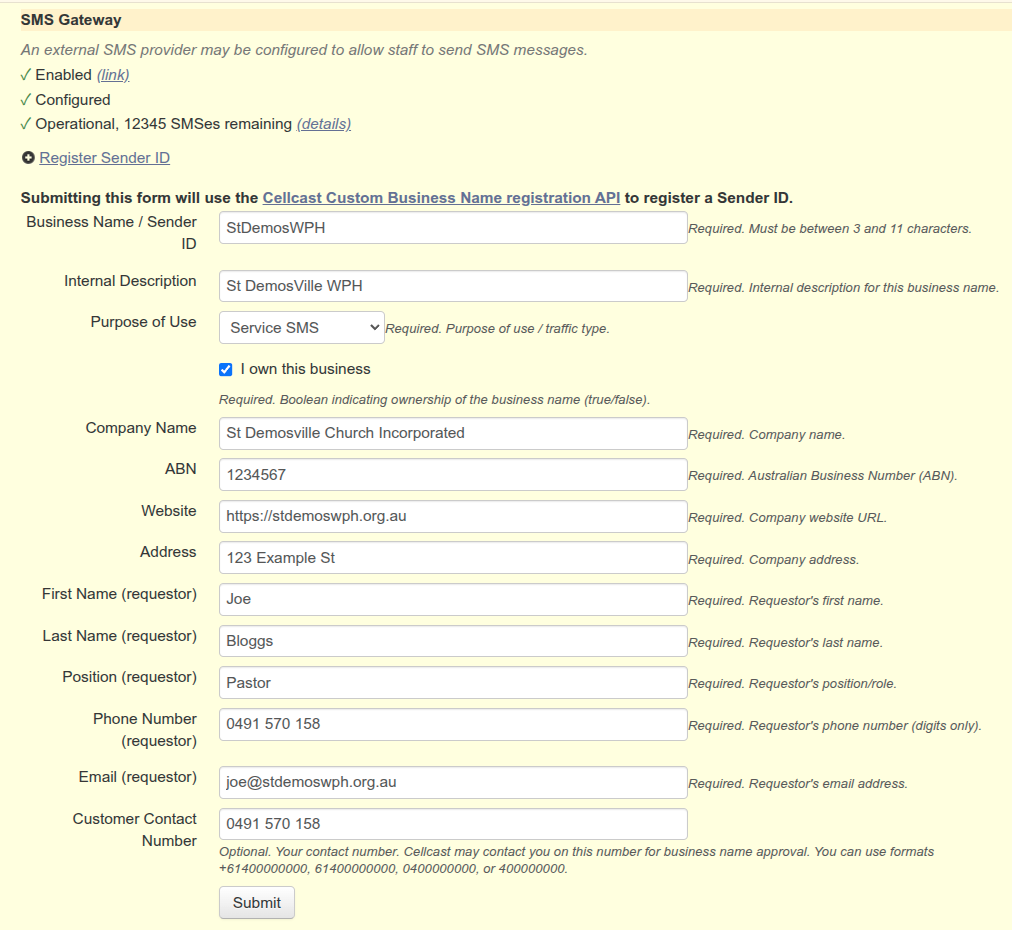
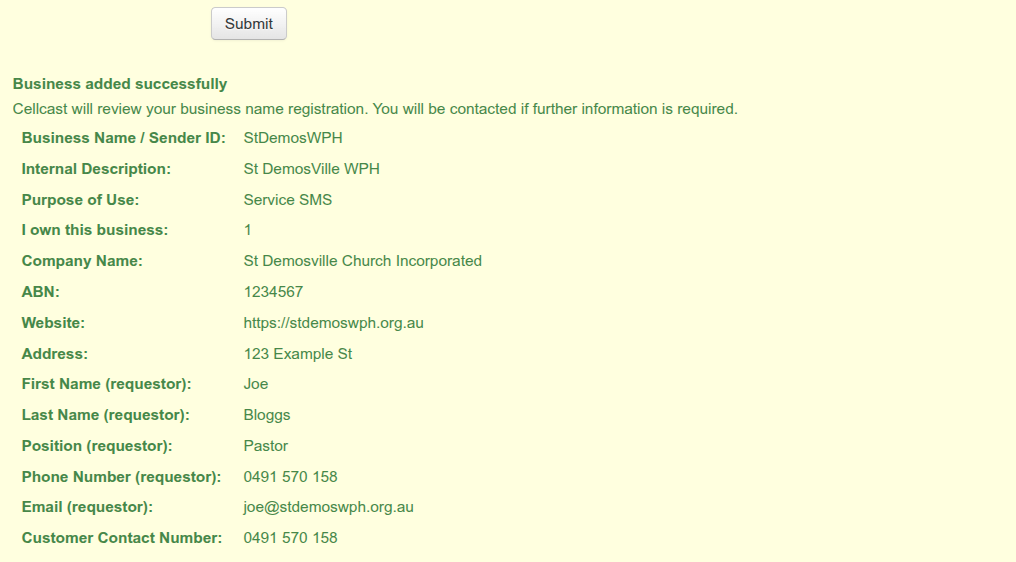
On clicking Submit, a new section confirming what was submitted will show:
Permissions
There are two SMS-related permissions:
| Permission | What it allows |
|---|---|
| SMS/Mailchimp - send | Send SMS messages, and view SMSes sent by yourself |
| SMS - view all | View all users' SMS message history |
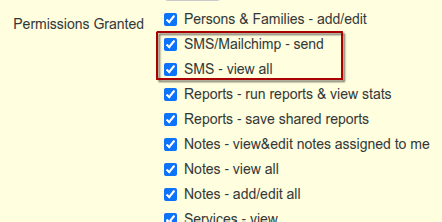
These permissions are granted by default to new staff members, unless altered in Admin → System Configuration -> Default Permissions.
Low SMS Reminders
These settings affect the compose dialog and sending behaviour:
- A cron job or systemd timer that runs
scripts/sms_low_reminder.phponce daily.
Cron example
0 9 * * * php /path/to/jethro/scripts/sms_low_reminder.php --sender=admin@mychurch.org
systemd timer example
Create two files:
/etc/systemd/system/jethro-sms-low-reminder.service
[Unit]
Description=Jethro SMS low balance reminder

[Service]
Type=oneshot
User=www-data
ExecStart=/usr/bin/php /path/to/jethro/scripts/sms_low_reminder.php --sender=admin@mychurch.org
/etc/systemd/system/jethro-sms-low-reminder.timer
[Unit]
Description=Jethro SMS low balance reminder timer

[Timer]
OnCalendar=daily
Persistent=true

[Install]
WantedBy=timers.target
Then enable it:
systemctl daemon-reload
systemctl enable --now jethro-sms-low-reminder.timer
How it works
The script:
- Fetches the current account balance from the SMS provider
- Skips if the balance is above the threshold
- Skips if no SMS has been sent in the last 24 hours (avoids pestering during quiet periods)
- Emails the notificant with the current balance and a reminder to top up
Use --debug to preview the email without sending:
php ./scripts/sms_low_reminder.php --sender=admin@mychurch.org --debug
Notifications are sent by email only — sending an SMS warning would consume further credits from the depleted account.
2FA SMS
Jethro can require staff members to enter a 6-digit code sent by SMS before they finish logging in. Even if someone's password is stolen, their account stays safe because the attacker won't receive the code.
How it works
- A staff member enters their username and password on the login page
- Jethro checks whether their account requires 2FA
- If it does, Jethro generates a 6-digit code, sends it by SMS to the staff member's mobile number, and shows a form asking for the code
- The staff member enters the code (or it expires after 10 minutes)
- If the code matches, they're logged in. If it's wrong twice, the process resets and they start again
Turning on 2FA
2FA is controlled by the 2FA Required Permissions setting in Admin → System Configuration. This setting lists which permission levels must use 2FA — anyone who holds at least one of the listed permissions will be required to complete 2FA on every login.
For example, to require 2FA for users who can manage other people's accounts (SysAdmins), add the SysAdmin permission level to the list. The permission values are the numbers shown in the Permissions & Security section of System Configuration.
Start by requiring 2FA only for SysAdmins. You can add more permission levels later once you've confirmed everything works.
If a staff member doesn't have a mobile number on their record, 2FA can't proceed — Jethro will show an error and notify SysAdmins by email to update the person's contact details.
Choosing the sender
Regular SMS messages appear to come from the staff member's own mobile number. But a 2FA code is sent before the user finishes logging in — there's no "current user" yet. Jethro needs a fixed sender name to use for 2FA codes.
Set the SMS 2FA Sender in Admin → System Configuration → SMS Gateway to a sender name your provider recognises. This is usually the same Sender ID you use for bulk SMS (e.g. your church name). If you leave it blank, Jethro falls back to whatever is set as the SMS Sender.
The sender name you pick must be allowed by your SMS Sender Options list. If you've restricted senders to a specific allow-list (for example, only StJohnsWPH and user mobile numbers), make sure the 2FA sender appears in that list too.
Separate credentials for 2FA
Some organisations prefer to send 2FA codes through a different SMS account than their regular messages — for example, a dedicated daily-send account with tighter limits, leaving the main account for bulk communications.
In Admin → System Configuration → SMS Gateway, each provider's API key has a matching 2FA version. If you fill in the 2FA version, Jethro uses those credentials for 2FA codes and the regular credentials for everything else. If the 2FA version is blank, Jethro simply uses the regular credentials for 2FA as well.
This applies to the API keys for 5CentSMS (both the key ID and secret) and Cellcast (the bearer token).
Trust this device
After entering a correct code, users see a checkbox: Trust this device for N days. If they tick it, Jethro won't ask for a 2FA code again from that browser until the days run out.
You can change how many days trust lasts (default 30), or disable the feature entirely, via the 2FA Trust Days setting.
Restricted accounts
By default, 2FA applies to everyone who holds a required permission — even users whose view is limited to particular congregations or groups ("restricted accounts"). If you'd prefer to exempt restricted users from 2FA, turn off 2FA Even For Restricted Accounts.
Testing and disabling
If you're setting up 2FA on a staging or test site, you can prevent real SMS charges while still testing the 2FA form and code flow:
- Turn on SMS 2FA Block Messages — the 2FA form appears, and Jethro logs what code it would have sent, but no SMS is actually delivered.
To switch 2FA off entirely (for example on a development copy of Jethro), turn off the 2FA Enabled setting.
Audit log
Jethro can keep a 2FA audit trail — who required a code, which number it was sent to, whether they entered it correctly, and any errors that occurred. To enable this, set the 2FA Logfile path in System Configuration. Use the 2FA Log Level to control how much detail is recorded: Full logs every event, Quiet only records errors.
Troubleshooting 2FA
| Symptom | Likely cause |
|---|---|
| 2FA form never appears after login | 2FA Required Permissions is blank, or the user doesn't hold any of the listed permissions |
| "System error during 2-factor auth" | SMS gateway is unreachable, or the 2FA sender name isn't in the allowed senders list |
| 2FA is skipped without any message | SMS gateway isn't fully configured — check the gateway status on the SMS page |
| User gets an error about missing contact details | The staff member has no mobile number on their person record — add one in Persons & Families |
| "SMS 2FA Sender not set" in the log | Your provider uses the user mobile field in its template, but no 2FA sender has been configured — set one in SMS Gateway settings |
See Also
- User Guide: Sending SMS — how staff send messages