Jethro SMS
- SMS Administration — how to initially configure SMS in Jethro.
Once configured, Jethro lets you send SMS messages to people in your church, individually or in bulk, and view past SMSes. This page covers choosing recipients, composing, personalising, scheduling, and viewing history.
You can create a Note associated with a SMS message to remind you to follow up. It is possible to schedule a message for later sending (up to 24h).
Viewing SMS Messages
Person 'Messages' tab
Past SMSes sent to a person (since Jethro 2.40.0) can be viewed in their 'Messages' tab:
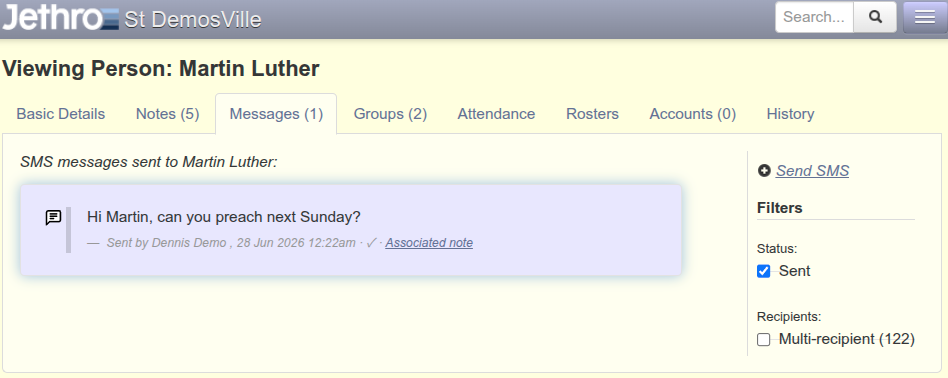
A status line shows below each message, with format:
Sent by First Last (#ID), date time · indicator · Associated note
Indicator shows the SMS status:
| Indicator | Meaning |
|---|---|
| ✓✓ | Delivered — the recipient's handset confirmed receipt. Hover for the delivery timestamp. |
| ✓ | Sent — handed off to the carrier; awaiting delivery confirmation. |
| 🕐 in X hours | Scheduled — queued for future delivery (shows relative time like "in 23 hours" or the absolute date). A (Cancel) link appears while still cancellable:  |
| ✗ failed | Permanent failure — the gateway rejected the message (e.g. invalid number, insufficient credits, blocked by carrier). |
| ⊘ cancelled | The scheduled send was cancelled before dispatch. |
| ⏳ message ID | Still in transit — the gateway accepted the message but hasn't reported a final status yet. The page auto-refreshes. Covers queued, sending, and in-progress states. |
| ⏳ test-message | Dry-run sent in Sms Testmode; never reaches a real handset. |
| (blank) | The provider that sent this message no longer matches the currently configured gateway, or the status is unknown. Delivery polling is unavailable. |
Status refreshes are frequent around the (scheduled) send time and taper off as it recedes in either direction. A message still showing Scheduled more than an hour after its send time has passed stops refreshing altogether — check the gateway's own console if that happens.
Bulk messages that included this person can be seen by clicking the Multi-recipient Filters checkbox:
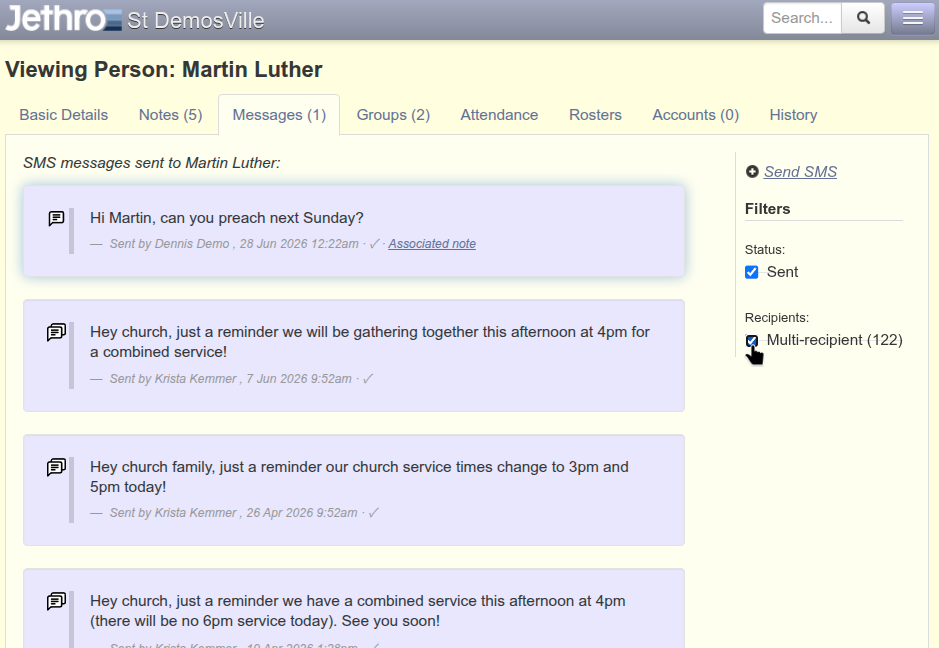
All messages are visible to staff with SMS - view all permission. Staff without the permission will only see SMSes they sent (via Jethro).
Messages Overview
Besides the per-person 'Messages' tab, there is also a Persons → Messages page, giving a system-wide view of sent SMS messages, filterable by sender, recipient, SMS message content or date:
This page is visible to those with SMS - view all permission
Sending SMS Messages
Two prerequisites for sending SMSes are:
- Your Jethro administrator must have configured an SMS provider. See Configuring a SMS provider
- Your account needs the
SMS - Sendpermission (see SMS permissions). Church members (i.e. not staff) cannot send SMSes.
You'll know SMS is set up if you see SMS-related buttons and fields on person profiles.
Sending SMSes
SMS can be triggered from many places in Jethro:
-
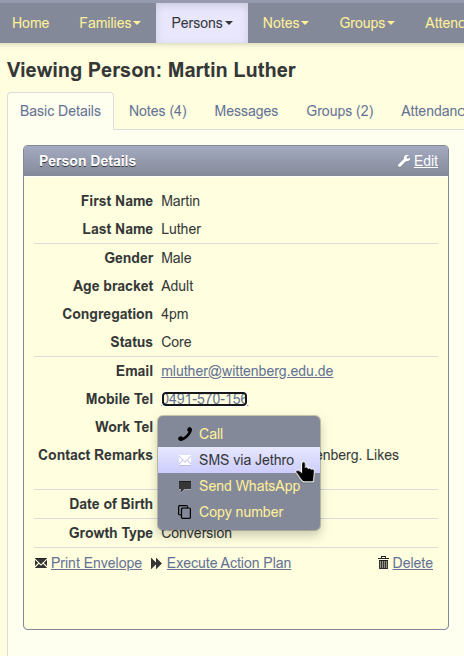
To a single person — from their details page, click their mobile number, then SMS via Jethro:
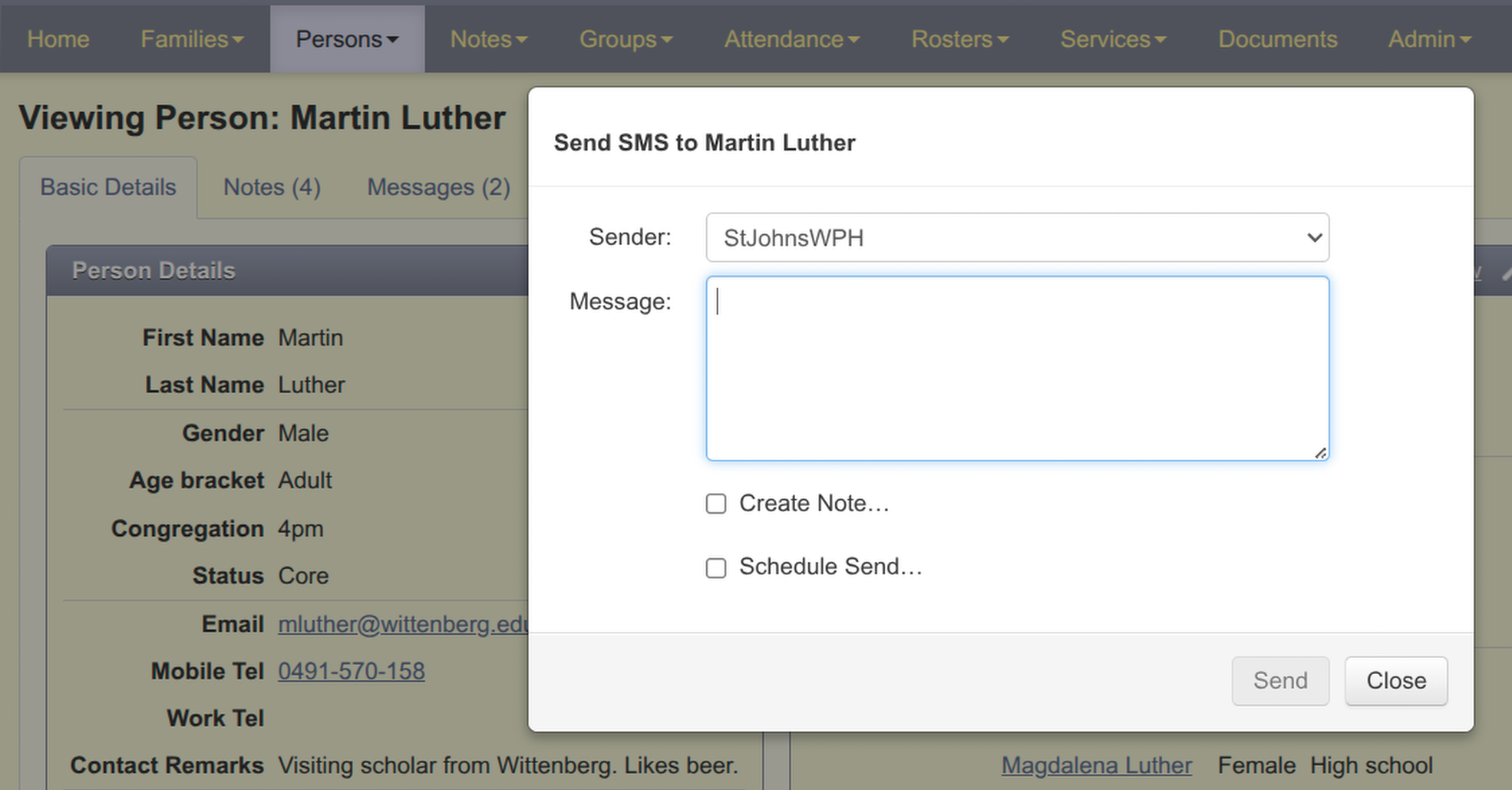
There is also a 'Send SMS' link on the Messages tab.
-
To multiple people — Persons → List All, tick checkboxes, click Choose Action → Send SMS:
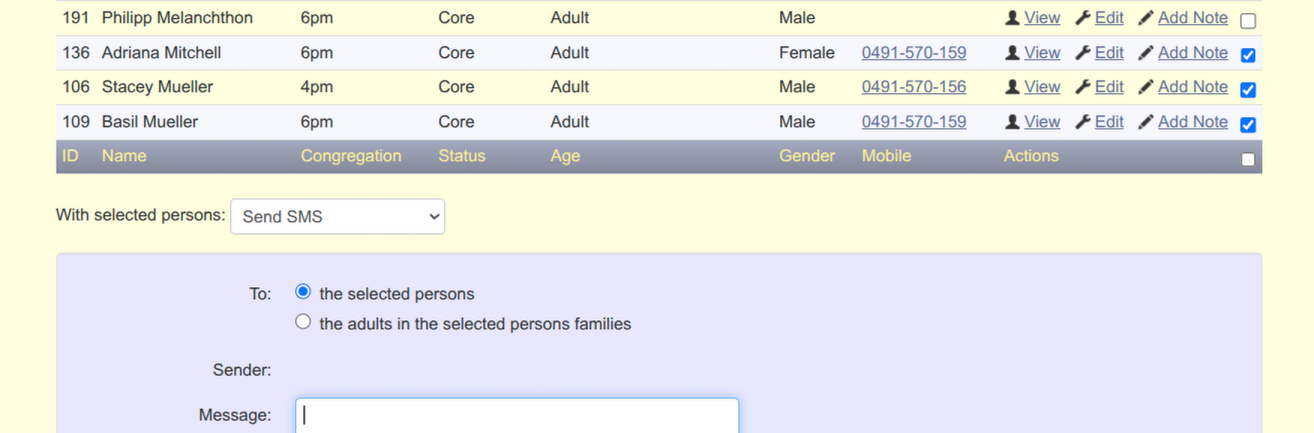
-
From a report — Persons → Reports, view a report, pick With selected persons: Send SMS:
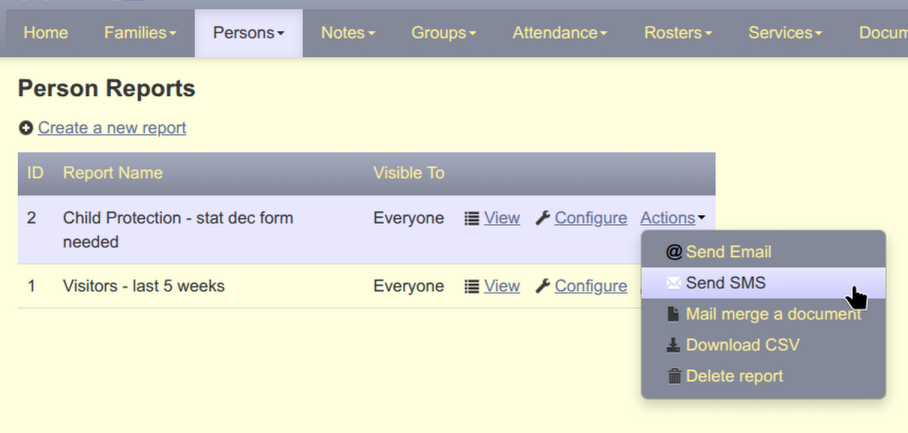
-
Family members — select family members and click With selected persons: Send SMS:
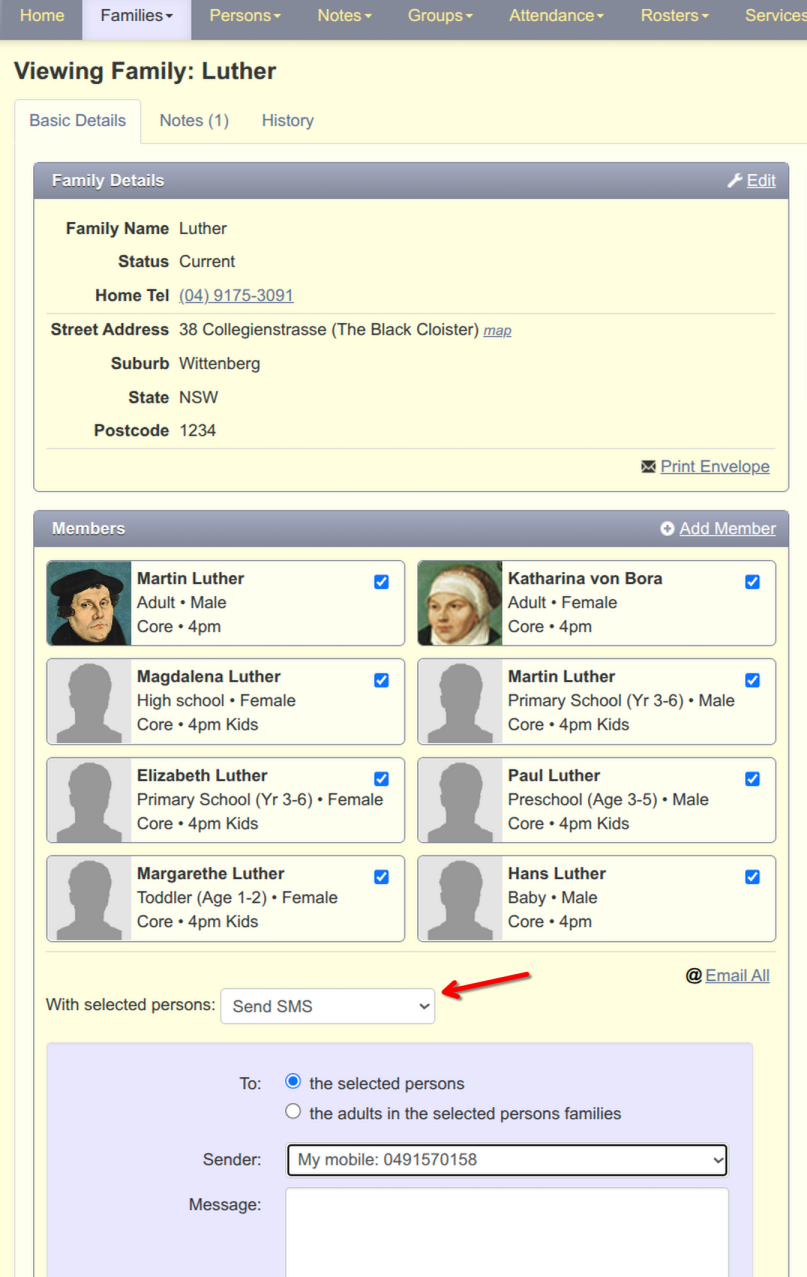
-
Group members — from the group page, select members and click SMS members:
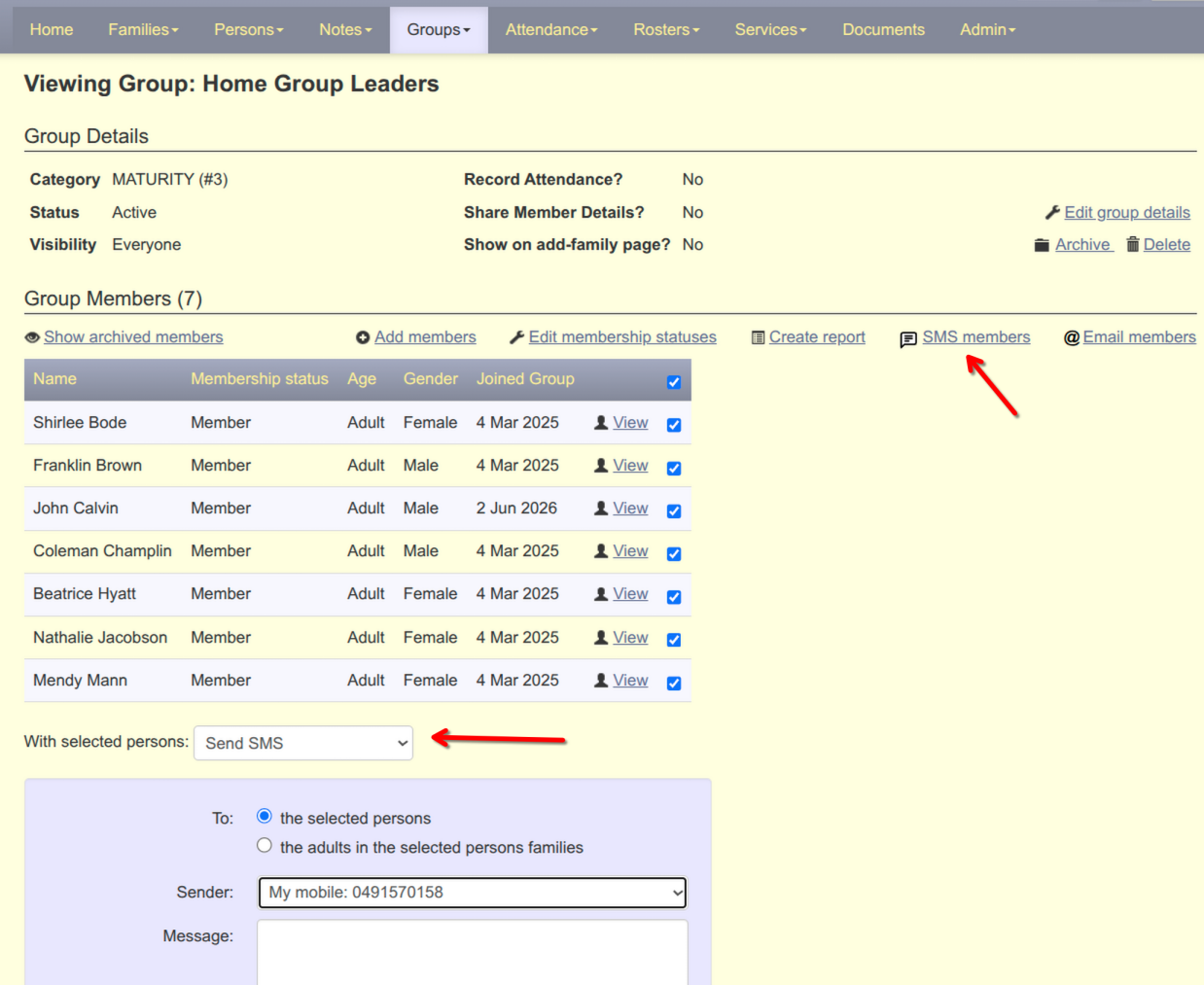
-
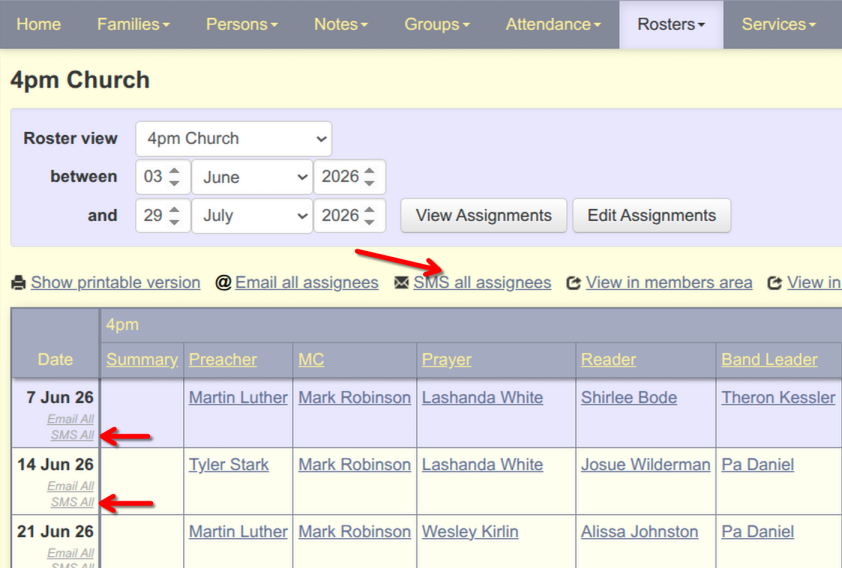
Roster assignees — from a roster, click SMS all assignees or the week's SMS All link:
The SMS Compose form
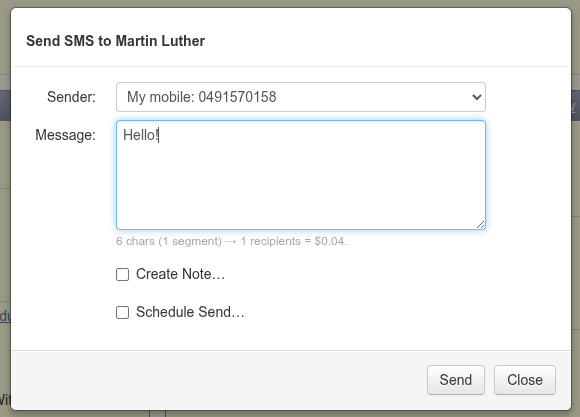
The individual SMS dialog (pop-up) looks like this:
The bulk SMS form has a few more options:
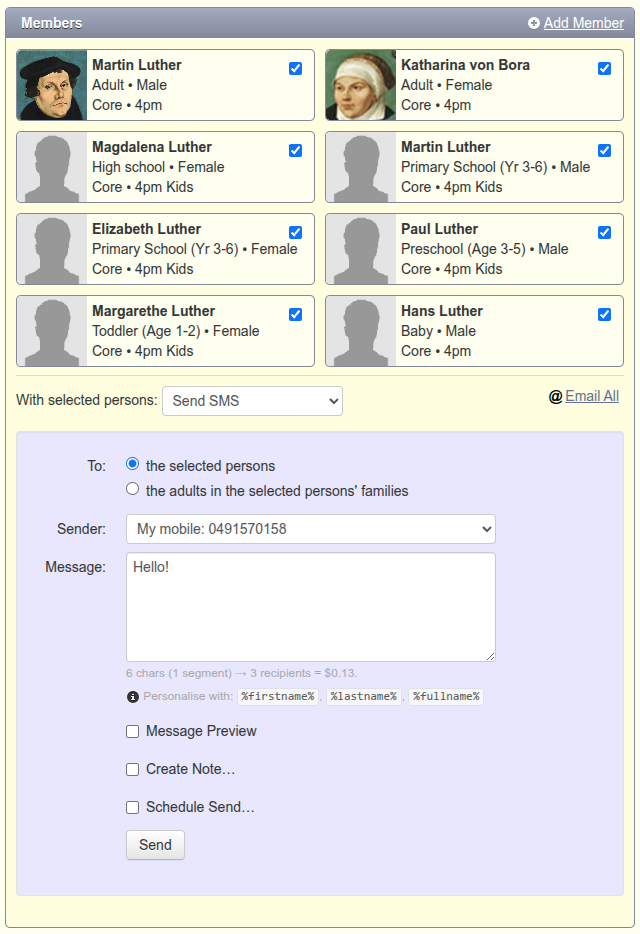
We'll describe the bulk SMS form, of which the single-person SMS form is a subset.
SMS recipients (To: field)
The To: field has two options:

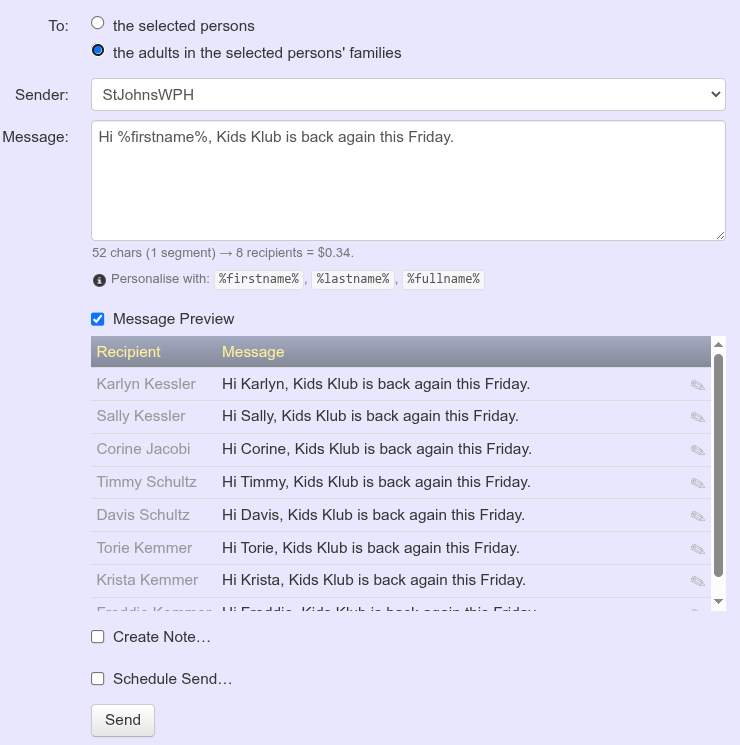
- the selected persons — actually only selected people with mobile numbers set will be messaged. E.g. in the screenshot above, the cost counter says '3 recipients' because only 3 or the 8 selected people have mobile numbers.
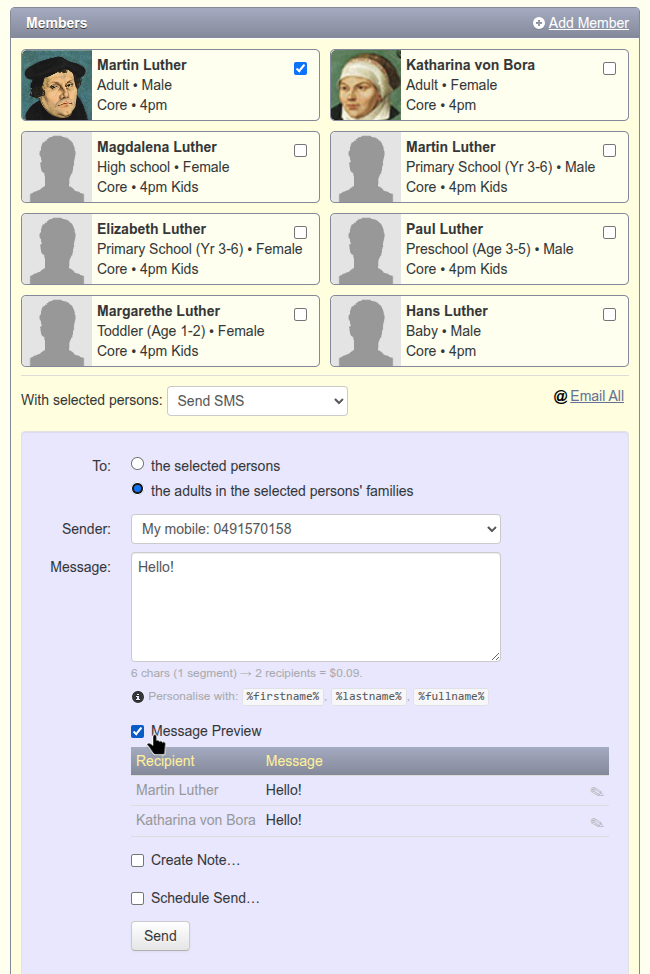
- the adults in the selected persons' families — note that this is not "the adults in my selection". For example, say only 'Martin Luther' was selected from the family: 2 people would be messaged, because there are 2 adults in Martin Luther's family.
The Message Preview is useful to see exactly who will receive a SMS:
SMS Sender
Sender: will be, by default, a drop-down with your mobile number (if set), and Sender IDs your SMS provider knows about (if any):
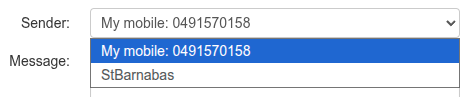
However depending on your SMS sender configuration, Sender: might be hardcoded list, or just one hardcoded value:

Validating your own mobile number
If you wish to send from your mobile number via Jethro, you will need to validate that you own it. Jethro will show "your mobile number needs verifying to send — verify now".
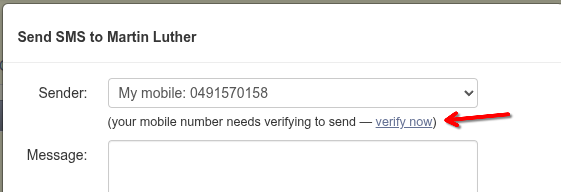
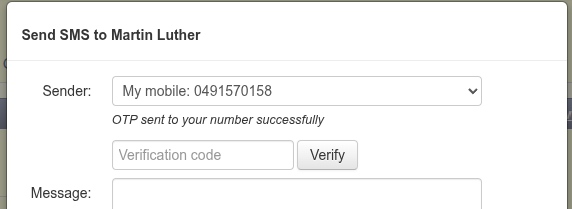
Clicking verify now will, in the case of Cellcast, send you an OTP code to fill in:
or in the case of 5CentSms, send your mobile a link via SMS to click (and display Sender ID created).
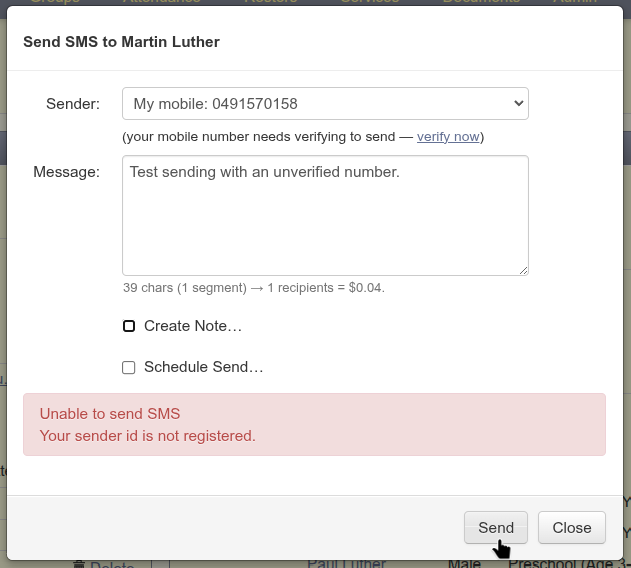
Trying to send from an unverified mobile number will result in a provider-specific error (in this case, from Cellcast):
Message text
The Message: field is where you compose your SMS. SMSes cost about 5c per recipient, and is billed per 160 normal characters (a 'segment') - meaning a 161 character message costs 10c instead of 5c. ✨Emojis✨ in text more than double the cost - 5c per 70 characters rather than 160.
Jethro defaults to limiting input to 160 characters, or 70 if emojis are present. The length limit and emojis are configurable in the administration section.
As you type, you will see a character count below the textarea, which will update as you type. Sending will be blocked if you exceed the limit:
Message Preview
For bulk messages, there are further features:
-
%firstname%,%lastname%and%fullname%tokens in the message will be expanded per-recipient -
URLs will be shortened (if configured, and if the shortened URL would be actually shorter)
-
a Message Preview is available, showing the recipients and what they will individually receive:
Create Note
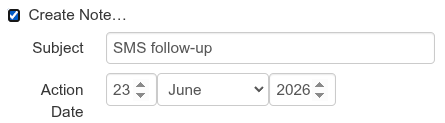
Sometimes you need to schedule a "follow-up" on a message. Below the Message field you will see a Create Note checkbox. If ticked, this will create a Person Note linked to the sent SMS.
You do not need to create a Note merely for archival purposes, as (since 2.40) Jethro records all notes in a separate Messages tab:
Schedule Send
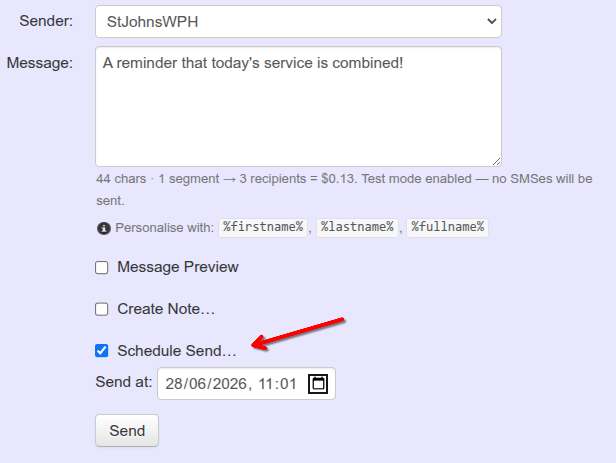
A bulk SMS can be delayed / scheduled to send, for up to 24h in the case of 5CentSMS and 365 days for Cellcast.
Send Cool-off
By default, Jethro applies a 30-second cool-off delay to all messages (except 2FA). This gives you a brief window to cancel a mistaken send. The delay is invisible — the message queues immediately but won't be dispatched until the cool-off expires. An administrator can change or disable this via Sms Send Cooloff.
Saving as a Note
Check Save as Note to record the message in each recipient's pastoral history. This creates a linked note under each person. The subject defaults to SMS follow-up (customisable via Sms Save To Note Subject).
After Sending
After sending an individual SMS, you will be redirected to the Messages tab, with the new message highlighted.
After sending a bulk SMS, a 'Message successfully sent' confirmation message appears, also noting who didn't get messaged and why.
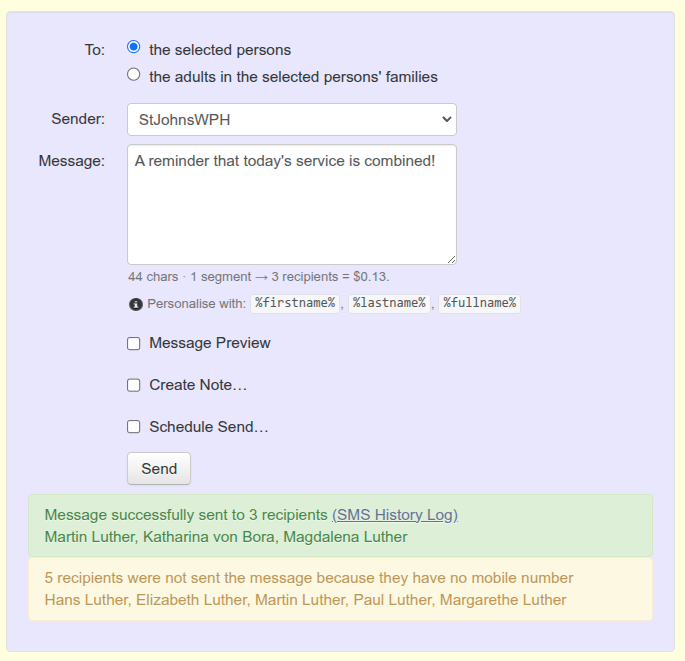
Viewers with the SMS - view all permission will see a SMS History Log link:
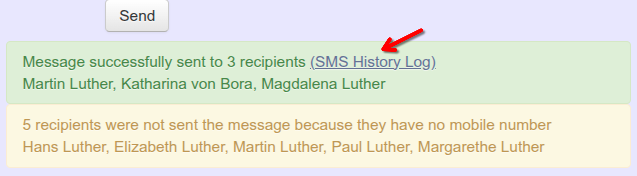
Clicking SMS History Log takes one to Persons → Messages.
Cancelling bulk sends
Scheduled bulk SMSes will have a 'Cancel all' link, which lets you cancel the send. In fact by default, all bulk SMS sends are cancellable for up to 30 seconds (the Sms Send Cooloff delay).
To cancel a scheduled message before it's sent:
- Go to the person's Messages tab
- Find the scheduled message (shows "Scheduled" badge)
- Click Cancel → confirm
Provider support: 5CentSMS v5 ✓, Cellcast ✓, SMS Broadcast ✗, Legacy v4 ✗. Cancel early — once the gateway dispatches, it can't be recalled.
The result message reports the outcome per recipient, e.g. "Cancelled 2 deliveries, 1 failed (message not found)." — the reason in parentheses comes straight from the gateway. Recipients the gateway refused to cancel keep their previous status (typically because the message was already dispatched, or the gateway no longer recognises it); they are never shown as cancelled unless the gateway confirmed the cancellation.